

The CS2 console commands provide an incredible level of customization and control within Counter-Strike 2. From improving your frame rate and reducing lag, to fine-tuning your keybinds and crosshair settings, utilizing the various console commands can take your gameplay to the next level. Whether you want to optimize your game for maximum performance, set up practice configurations, or simply change up your resolution on the fly, unlocking the power of the console is a must for any dedicated CS2 player.
How To Open The CS2 Console
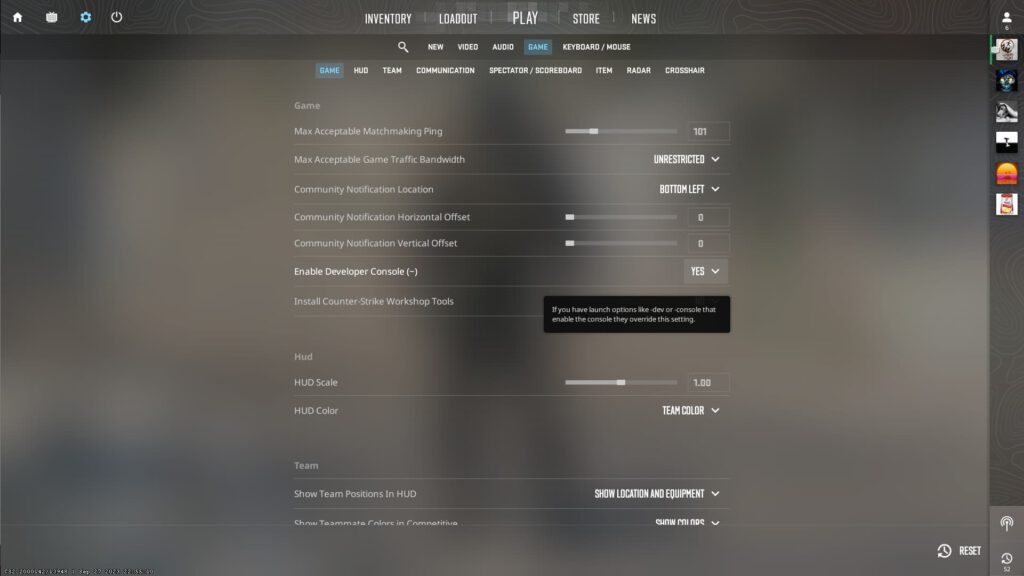
Have you ever wondered how to access all those CS2 console commands but didn’t know where to start? Opening up the console is the first step. It’s actually pretty easy – just launch your game of CS2 and click the little gear icon to enter the settings.
From there, look for the “Game” tab and flip the switch next to “Developer Console” to turn it on. Now just press the tilde (~) or backtick (`) key on your keyboard and bam, the console will pop up so you can start using all those handy console commands!
How To Rebind Your Console Key in CS2
The default console key can be a little awkward for some, so it’s nice to know you can rebind it to something more comfortable. Head back into the settings under the “Keyboard/Mouse” tab this time.
Then find the section called “UI Keys” and you can change the button mapped to “Toggle Console” to whatever feels best. I’ve got mine set to a side mouse button so it’s super easy to pop open that console without moving my hands too much. Makes a big difference!
Best CS2 Console Commands For FPS And Lag

Now that you know how to access the console commands, let’s check out some of the best ones for improving performance. A big one is “fps_max 0” which uncaps your frame rate for maximum smoothness. “cl_disable_ragdolls 1” and “vprof_off” can also give your older rig a boost.
Tweaking the interpolation settings like “cl_interp 0.015625” and “cl_updaterate 128” will reduce laggy moments. And “demo_flush 0” supposedly helps too, though I didn’t notice a big difference. Give ’em a try – you never know what might work until you test it out!
Complete CS2 Console Commands List
Let’s jump into the good stuff – a rundown of the hottest CS2 console commands around. Below you’ll find all sorts of handy options explained simply, from what they do to how you activate them. Whether you’re looking to unlock god mode or just tweak your crosshair, this list covers the essentials to take your game to new heights. Read on for the need-to-know shortcuts, then get in there and start dominating!
| Console Command | Description |
| fps_max [#] | Caps the FPS. Set to 0 for no limit! |
| bind [action] [key] | Binds an action to a hotkey e.g. jump throw bind. |
| sv_cheats [0/1] | Toggles use of “cheatier” commands in private matches. |
| sv_infinite_ammo [0/1] | Toggles infinite ammo on or off. |
| noclip | Lets you fly around and pass through walls and floors. |
| god | Toggles invulnerability on or off. |
| kill | Instantly kills and respawns the player. |
| disconnect | Disconnect from the current server. |
| quit | Quit Counter-Strike 2. |
| cl_drawhud [0/1] | Toggles the in-game HUD on or off. |
| cl_show_team_equipment | Shows weapons and gear above teammates’ heads. |
| cl_reload_hud | Reloads the HUD at default scale. |
| r_drawtracers_firstperson [0/1] | Toggles your firing tracers on or off. |
| cl_autohelp [0/1] | Toggles the in-game hints on or off. |
| cl_hide_avatar_images [0/1] | Toggles the visibility of player avatar images on or off. |
| cq_netgraph 1 | Displays latency data on-screen. |
| cl_showfps 1 | Displays basic FPS data on-screen. |
| cl_showfps 2 | Displays in-depth FPS data on-screen. |
| cl_showfps 3 | Displays in-depth FPS and server data on-screen. |
| cl_showfps 4 | Displays and logs to file in-depth FPS data on-screen. |
| cl_showfps 0 | Removes any FPS display. |
| give weapon_[weapon name] | Spawns the specified weapon. |
| sv_rethrow_last_grenade | Repeats the last grenade throw exactly. |
| sv_grenade_trajectory [0/1] | Toggles tracers for grenade trajectories. |
| sv_gravity [#] | Sets the gravity (default is 800). |
| mp_respawn_on_death_ct [0/1] | Allows counter-terrorists to instantly respawn after death. |
| mp_respawn_on_death_t [0/1] | Allows terrorists to instantly respawn after death. |
| mp_roundtime [mins] | Sets the round time to the specified number of minutes. |
| mp_buytime [secs] | Sets the buy time to the specified number of minutes. |
| mp_roundtime_defuse [mins] | Sets the round time on Defuse modes. |
| mp_roundtime_hostage [mins] | Sets the round time on Hostage modes. |
| mp_buy_anywhere [0/1] | Toggles whether you can enter the shop from anywhere. |
| mp_maxmoney [#] | Sets the maximum amount of money you can have. |
| mp_startmoney [#] | Sets the amount of money you start the game with. |
| sv_lan 1 | Starts a LAN private server. |
| mp_restartgame 1 | Restarts match. Needed before some commands take effect. |
| changelevel [map code] | Changes the level in private matches. |
| launch_warmup_map [map name] | Starts a practice mode match on the specified map. |
| sensitivity [#] | Changes your mouse sensitivity. |
| viewmodel_fov [#] | Changes your field of view. |
| ent_bbox | Displays an object’s collision box in orange. |
| bot_kick | Removes all bots from the server. |
| bot_add | Adds bots to the server. |
| bot_place | Spawns a bot at the position you’re looking at. |
| bot_crouch | Makes all bots on the server crouch. |
| bot_stop 1 | Freezes all bots. |
| bot_mimic 1 | Forces all bots to mimic your movements. |
| cl_disable ragdolls [0/1] | Toggles ragdoll physics on or off. |
| cl_ragdoll_workaround_threshold [#] | Sets the accuracy of ragdoll positions. |
| cl_crosshairsize [#] | Sets the crosshair size. |
| cl_crosshairthickness [#] | Sets the crosshair thickness. |
| cl_crosshairdot [#] | Sets the crosshair dot size. |
| cl_crosshairgap [#] | Sets the crosshair gap size. |
| cl_crosshaircolor [1-4] | Changes the crosshair colour to different preset colours. |
| cl_crosshairstyle [0-5] | Switches between static, dynamic, and other crosshair styles. |
| cl_crosshaircolor_r [#] | Sets the amount of red in the crosshair colour. |
| cl_crosshaircolor_g [#] | Sets the amount of green in the crosshair colour. |
| cl_crosshaircolor_b [#] | Sets the amount of blue in the crosshair colour. |
| cl_crosshaircolor_alpha [#] | Sets the alpha (opacity) of the crosshair colour. |
| cl_crosshair_friendly_warning [0/1] | Toggles the crosshair friendly fire warning on or off. |
| volume [0-1] | Adjusts the game’s master volume from 0 (muted) to 1 (max). |
| voice_modenable [0/1] | Toggles voice chat on or off. |
| voice_scale [0-1] | Adjusts teammate voice volume from 0 (muted) to 1 (max). |
| voice_mute [player name] | Mutes a particular player’s voice chat. |
| voice_unmute [player name] | Unmutes a particular player’s voice chat. |
| cl_interp [#] | Sets the interpolation time. |
| cl_interp_hermite [0/1] | Toggles hermite interpolation on or off. |
| cl_updaterate [#] | Sets the interpolation update rate. |
| cl_interp_ratio [#] | Sets the interpolation ratio. |
| vprof_off | Disables the VProf profiler. |
| iv_off | Disables the interpolation variable profiler. |
| demo_flush | Flush writing the demo file every network update. |
How To Set Up An Autoexec File in CS2
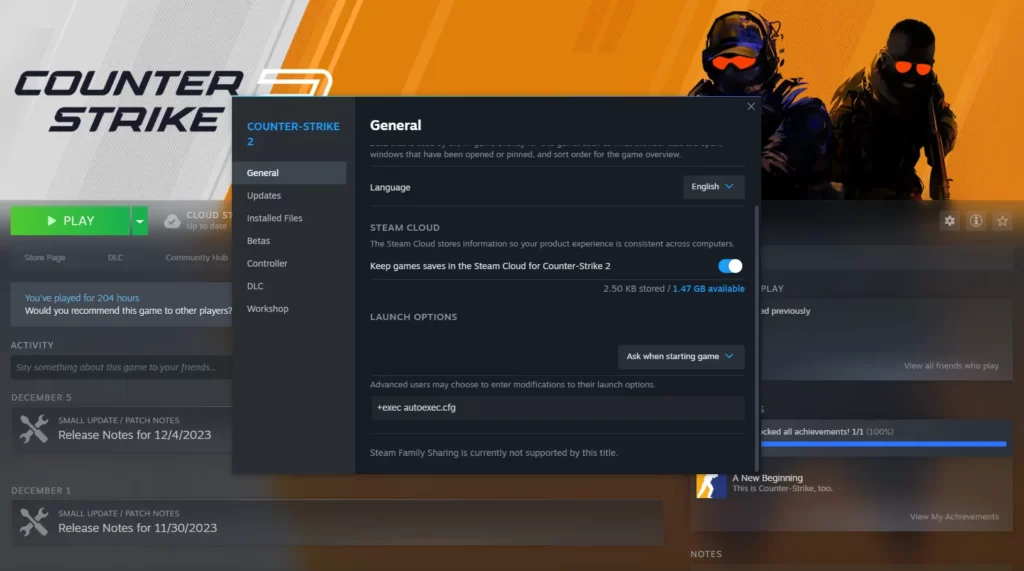
Rather than typing all those console commands each time, you can set up an autoexec file to run them automatically on launch. Just right-click CS2 in your library, browse local files, then navigate to the CFG folder.
Make a new text doc called “autoexec.cfg”, open it in Notepad, and paste in your commands. Then add “+exec autoexec.cfg” to your launch options and you’re all set! Now your settings will apply without any extra work each session. Very handy if you’ve got a lot of tweaks.
How Do You Add Money On CS2?
Ever find yourself short on cash in a game of CS2 and want to buy that AWP? One console command can help with that – “mp_maxmoney 65535” sets the money cap super high so you’ll always have plenty to spend.
You can also use “mp_startmoney 65535” to give yourself a big starting stack each round. Just be careful, it can make things too easy! Stick to official matches and only use it for fun in private games against bots.
CS2 Console Command To Change Resolution
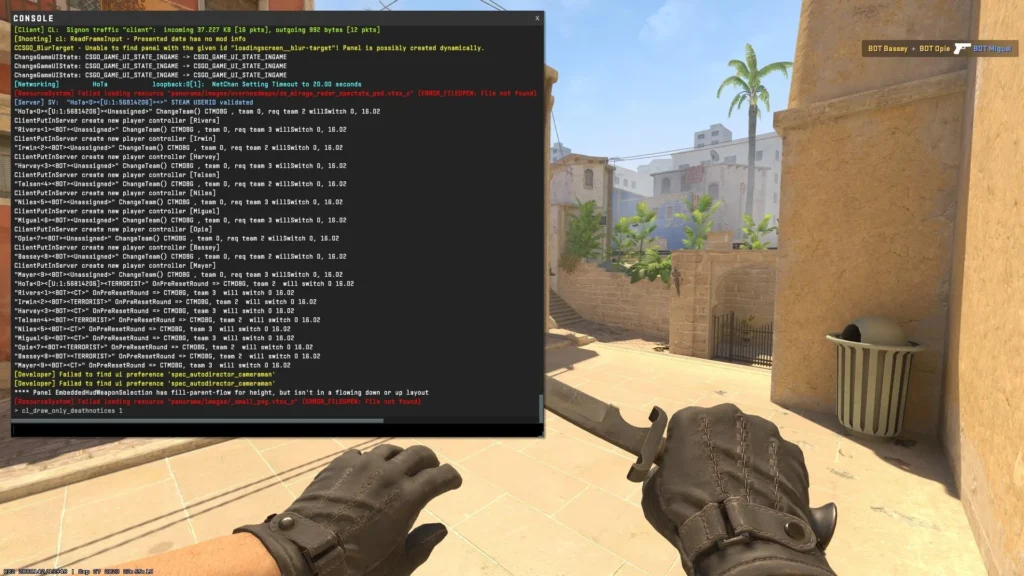
Sometimes you might want to try different resolutions in CS2, like if you’re testing aspect ratios or troubleshooting graphics issues. The command “vid_fullscreen_width” lets you set the horizontal resolution, while “vid_fullscreen_height” controls vertical.
So something like “vid_fullscreen_width 1920” and “vid_fullscreen_height 1080” would set it to full HD. You can even use lower res like 1024×768 for a retro feel. Just hit your console key, type the commands, and hit enter to update on the fly.
CS2 Console Commands For Practice Smokes
Throwing good smokes is so important in CS2 but can take awhile to learn. The “sv_grenade_trajectory 1” command shows the path of grenades so you can practice lineups. “sv_cheats 1; noclip” lets you fly around to see smoke spots from new angles too.
You can also freeze time with “sv_cheats 1; host_timescale 0” to line things up perfectly. And “bot_place; bot_stop 1” spawns bots for you to smoke off. Definitely mess around on an offline server to get those nades down before the real matches!
CS2 Console Command To Show Fps

Keeping an eye on your frames per second (FPS) helps optimize CS2 performance. The “cl_showfps 1” command displays it as an overlay, while higher numbers like “cl_showfps 3” provide more details. Personally I use “cl_showfps 4” to also log it to a file for later analysis.
It’s useful any time you’re tweaking settings or troubleshooting performance issues. Just hit that key combo, check the numbers, then turn it off again when you don’t need it cluttering your HUD. Handy for monitoring!
CS2 Console Command For Damage Report
Sometimes after a round you just aren’t sure who killed you or how much damage they did. The “hud_combattext_batching 0” command displays an in-depth report in the console with all the details. It will list every bit of damage taken, from what weapon and player.
Really helps you learn where you went wrong! I like to use it to review close losses and see if I was one bullet away from winning the clutch. Give it a try next time you want to analyze your performance in CS2.
CS2 Console Commands For Better Aim
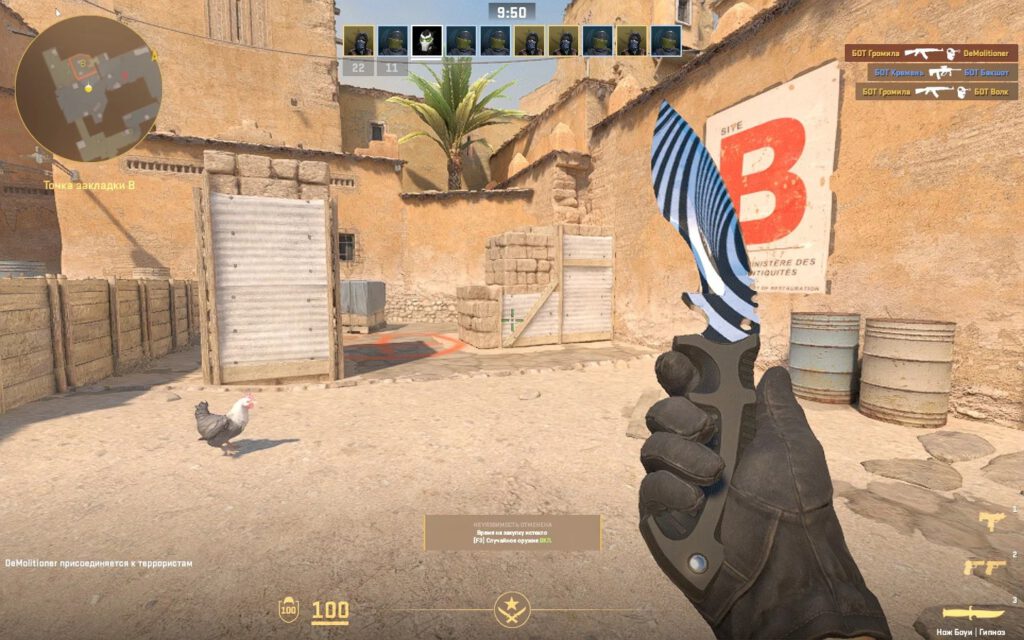
There’s no substitute for just putting in the practice, but a few console commands can help fine tune your aim even more. “sensitivity 2” is a good place to start dialing in your mouse sensitivity for precision shots. “viewmodel_fov 68” widens your view for better peripheral awareness.
And “crosshairdot 1” with a small gap like “crosshairgap -2” helps you nail heads. The right settings won’t guarantee you top frag, but they may shave a few milliseconds off your reaction which can mean the difference in a fight. Tweak and test regularly to find your perfect setup!
Final Thought
The CS2 console commands provide a powerful way to customize your game and boost performance. Be sure to check out some autoexec file tutorials too so you can save settings for each session. And of course, don’t forget to just jump into matches and keep grinding – practice will always make you better, with or without console tweaks. Now get in there and frag out!